How to Blur Face in Hypic AI Photo Editor?
Are you a social media influencer or love to post photos and videos on the internet, and are looking for a platform to blur the faces of people in the photo? Then, Hypic is undoubtedly a great tool that makes it quite easy for you to blur faces, and there are various kinds of blur effects so you can choose the perfect blur to hide the individual identity by blurring their face.
Face blurring is one of the most common editing tools, but most photo editors make this process quite complex and tough to figure out. However, Hypic is quite a straightforward tool, so it has a separate Blur tool in the app and allows users to manually blur the selected area in the image.
What is Hypic AI Photo Editor?
Hypic is one of the most powerful and AI-equipped photo editing apps available for mobile devices, and it is mainly used by social media influencers and Instagrammers for thumbnails and pictures for posting on the internet. Hypic AI Photo Editor not only lets you edit beautiful images but also renders those images without compressing them, allowing users to access high-quality pictures as an outcome.
Using tools like AI enhancement, you can fix the blurred, shaky, and damaged images and elevate their quality to bring back the fine details. There are hundreds of filters, effects, and pre-designed templates in this app for quick editing and making a boring picture tool highly creative.
Explain All Types of Blur Effects in Hypic
The Hypic AI Photo Editor packs six fun blur effects! With Galaxy Blur, you can play around with the intensity and shape to blur either your subject or background. Dynamic Blur adds pizzazz by creating a sense of motion, while Swirly Bokeh makes the background twirl playfully around your subject. Let’s learn about all blur effects in detail.
- Galaxy Blur: This blur type gives a quite dreamy and cosmic effect, making the image look beautiful, especially when there are lights in the background.
- Blurred Love: It is mainly used for generating DSLR-like cinematic background bokeh effect, also ideal for using for face blur, but keep the intensity highest, otherwise the face will be identifiable.
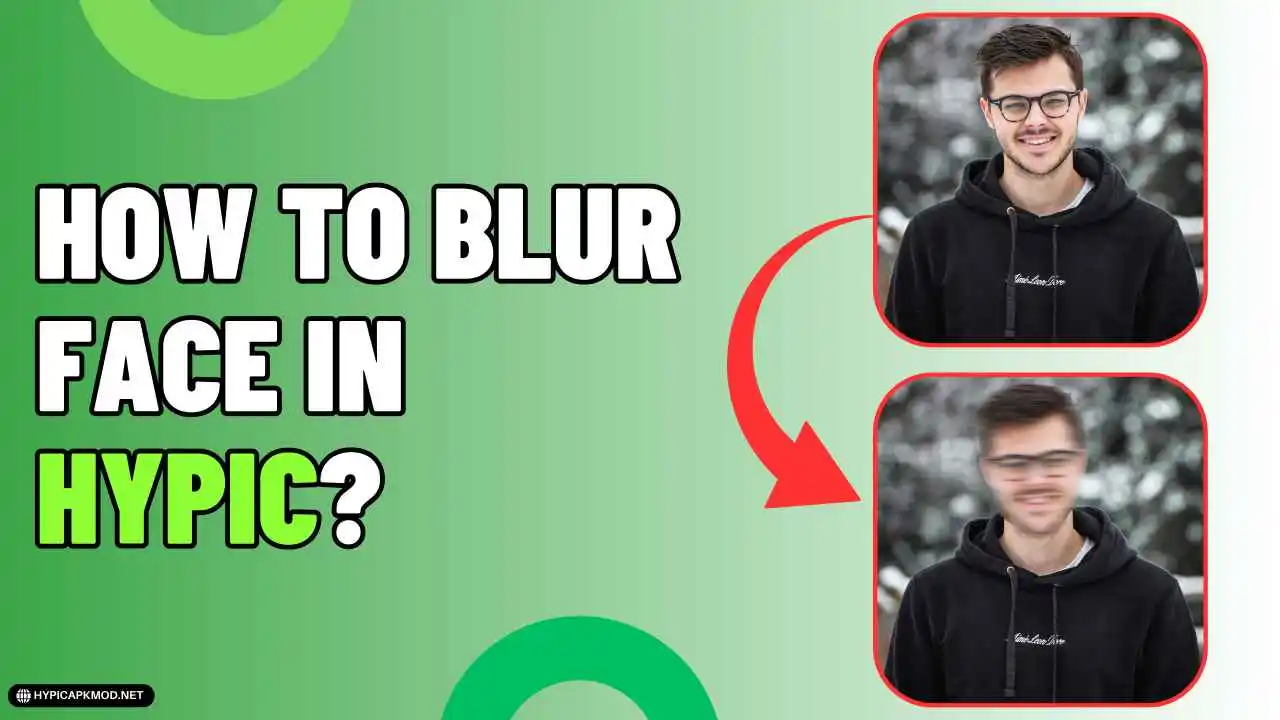
- Dynamic Blur: This is the most common face blur effect that is used for hiding the identity by blurring their face. This blur effect makes the image look shaky, and the image looks stretched or smeared in the direction of movement.
- Swirly Bokeh: It is quite a low-intensity blur effect, not ideal for face blur, but great for creating a natural background bokeh effect.
- Classic: It is a quite common blur effect that you see in the portrait mode of most camera apps on phones.
- Cat Eye: The Cat Eye blur effect is very similar to the Classic blur effect, but its intensity is almost 5x more than the classic blur effect.
Step-by-Step Guide to Blur Face Using Hypic App
If you try to apply the blur effect on Hypic, it will automatically detect the main subject and background, then add a bokeh effect in the background, but you want to only blur the face, not the background, so follow the simple process outline below to understand how easily you can blur the face of anybody in an image on your phone.
Step 1: Download & Install Hypic App
Firstly, you have to make sure you have the latest version of the Hypic app installed on your device. If you’re using an outdated version, you may not see blur feature in the app, so keep the app updated. Follow this link to download the latest Hypic Mod APK and install it on your phone.
Step 2: Launch the app & Upload a Photo
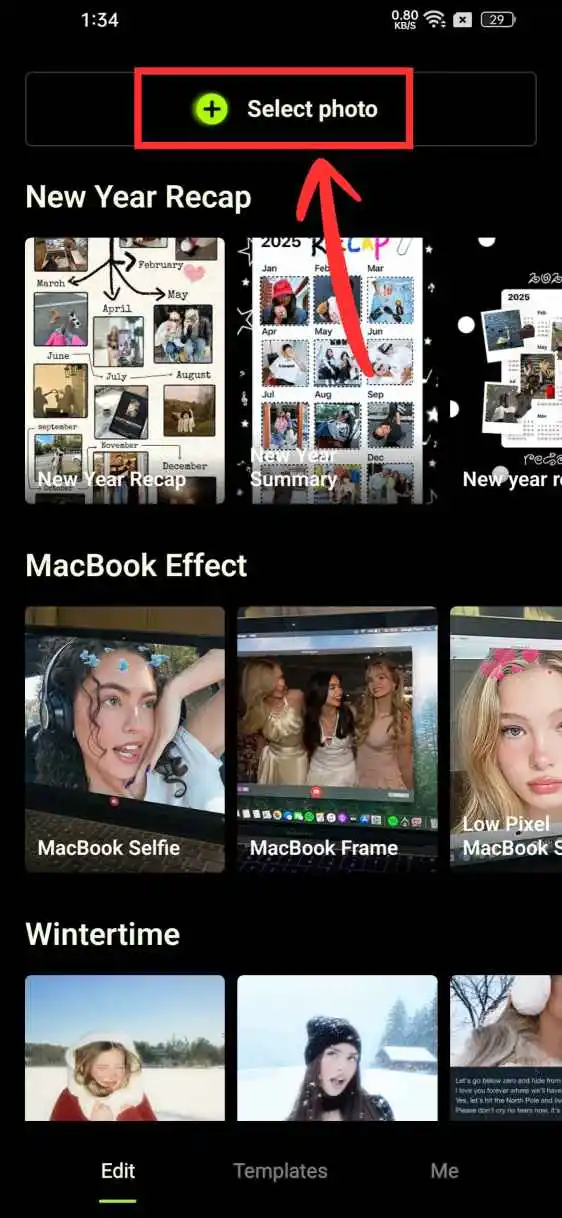
Once installed, launch the Hypic AI Photo Editor app and grant access to the gallery and storage, which is required, then upload a photo in which you want to blur the face of an individual.
Step 3: Select the Blur Tool
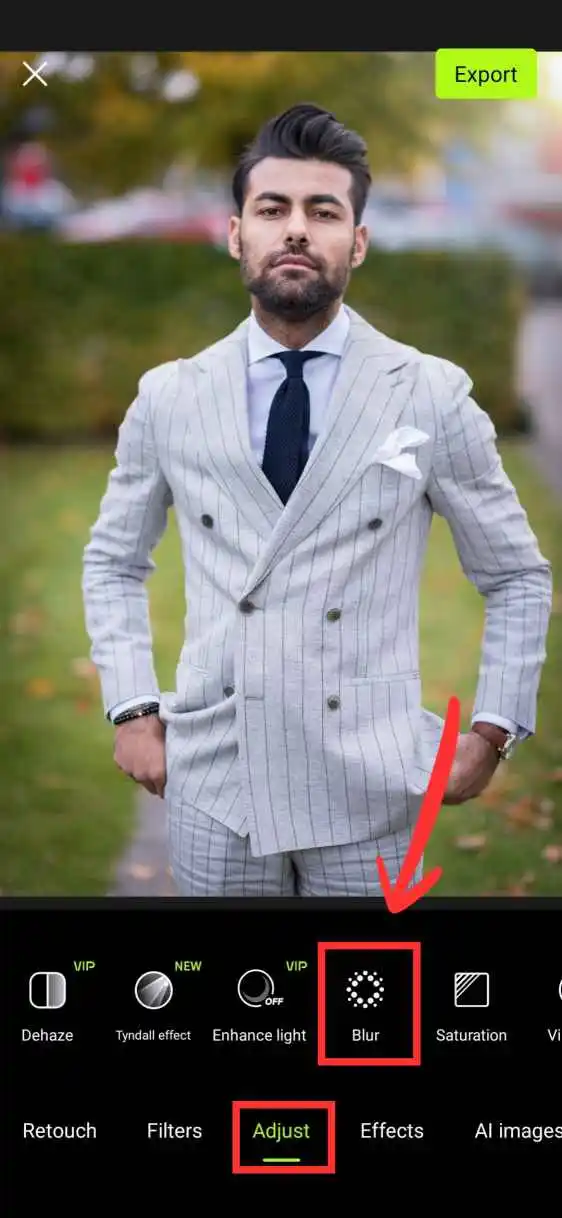
Select the ‘Adjust’ option from the bottom toolbar section. Swipe right in the tools section till you find the tool labeled ‘Blur’, then click on it. A green colour will appear all over the subject’s body.
Step 4: Blur Only Face
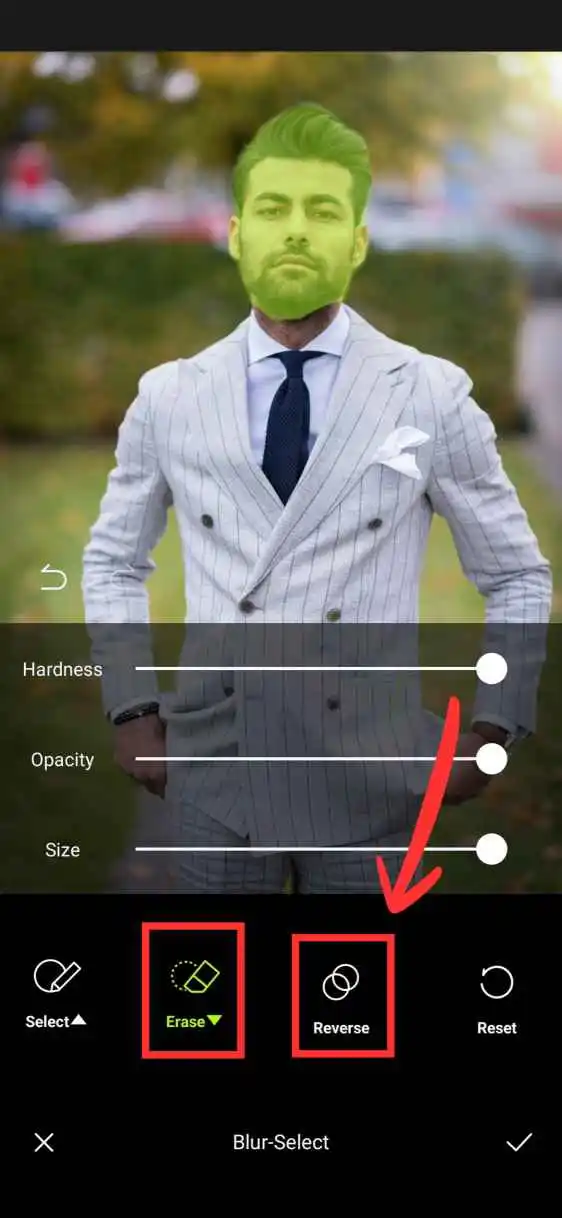
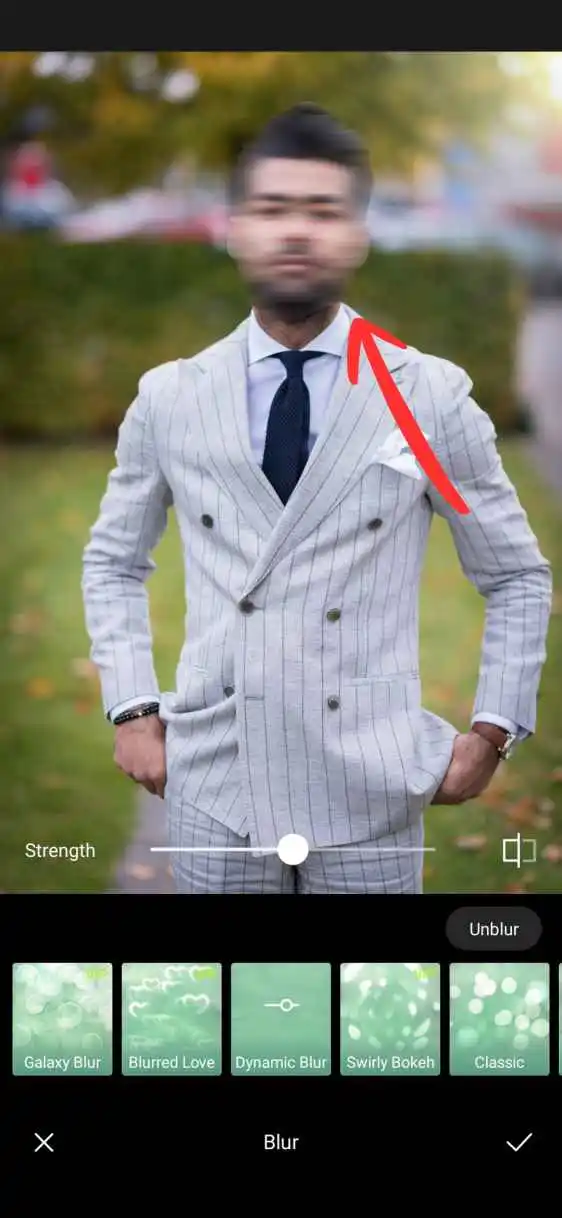
Select a Blur effect and then click on the ‘Unblur’ option and select ‘Erase’. Now use the eraser tool to manually remove all the green colour from the subject’s body except the face. After doing this, tap on ‘Reverse’, then click on the check mark icon at the bottom right to apply the blur effect.
Step 5: Export & Save the Image
Now, you have successfully blurred the face of the selected individual in the image to hide their identity. Click on the Export image at the top right corner to save the edited image to your device’s gallery.
Professional Tips for Blurring Face in the Hypic app
1. Adjust Blur Strength
Want to perfect those blurred faces in your pics? Aim for that sweet spot! If you crank the blur over 80%, it’ll be a guessing game whether someone’s next to you. On the flip side, if you go below 30%, they might as well be waving at the camera! So, for the best results, stick to a blur strength of 45% to 65%—just right for keeping things mysterious without losing the vibe.
2. Avoid Blurring Hair and Background
Try to blur only specific parts of the subject, which in this case is the face. Do not blur hair, background, or any other part of the image. Avoid blurring hair and background to create a professional blurred image.
3. Manual Refinement:
Just don’t rely on the automatic AI detection blur, as it is designed to only blur the background, not the ‘only face’. Therefore, Manual refinement is important to create professional-looking blurred images. AI will detect the whole subject or background of the image; thus, you need to choose a blur effect, blur specific parts of an image manually.
Conclusion
Hypic AI Photo Editor is a gem for content creators and social media stars. We all know that sometimes those perfect shots can have uninvited guests in the background. That’s where Hypic comes in—it’s your go-to for effortlessly blurring out distractions. With its slick blur effects, you can whip up professional-looking images that are just right for your thumbnails and posts. Happy editing!

Nishad
Nishad is a photography enthusiast and doing photo editing as a hobby for more than 6 years now. I’m the creator of Hypicapkmod.net, where I’ve shared detailed insight about Hypic AI Photo Editor and pro tips to elevate your pictures with Hypic’s true AI magic.